See which Claude Code session is waiting for you
Several terminals, several repos, and one agent has been waiting on a question for twenty minutes. How to see every Claude Code session and its state in one place.
On this page
What Claude Code gives you (as of 14 October 2026)Fixes and stepsWith ratchetRelated guidesWhat Claude Code gives you (as of 14 October 2026)
- Agent view. Agent view, opened with
claude agents, is one terminal screen for your background sessions: working, needs input, idle, completed, failed or stopped, with each one's pull request status. It lists the sessions you dispatch from it, and it is a research preview, so its screen and keys may change. - Notification hooks. A hook on the
Notificationevent runs a command when a session waits for input or permission, so each session can announce itself.
Fixes and steps
From Anthropic's docs on agent view and hooks, as of 14 October 2026:
- Start new work from agent view. Sessions you dispatch from
claude agentsappear on its screen with their state. - Make waiting sessions speak up. Add a
Notificationhook with thepermission_promptoridle_promptmatcher, so a session that starts waiting runs a command you choose. - Mind the quota. Anthropic notes that ten agents in parallel use quota roughly ten times as fast. Seeing which ones are idle lets you close them.
With ratchet
ratchet is a free dashboard for Claude Code that runs on your PC, on Windows 10, Windows 11 or macOS, and opens in your browser. It reads Claude Code's own session files, so it finds agents wherever you started them: in ratchet, in VS Code or in a terminal. Each one shows Working, Waiting on you or Done. Agents started from ratchet can also show Wants permission, and a session you closed shows Closed.
npm install -g @ratchet-ai/ratchet ratchet
- Add each repo folder once. ratchet lists the Claude Code agents in all of them. See Agents.
- Look for Waiting on you, then open the agent to read its question and its conversation. See Status.
- Away from the desk, open the same list on your phone with phone access.
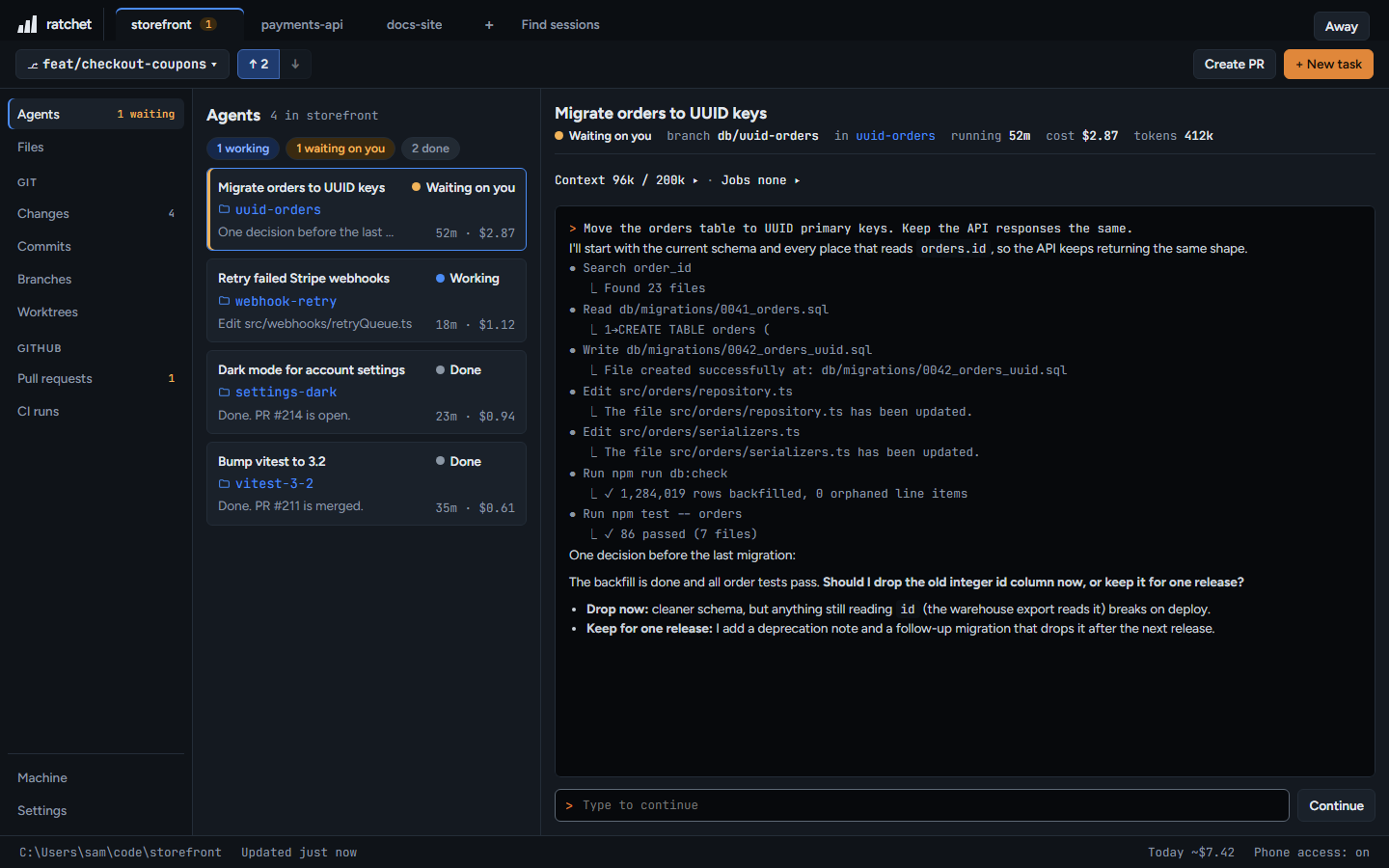
For an agent you started in a terminal, ratchet shows Waiting on you when it asked a question; a permission prompt shows as Working for about two minutes, then Done. You answer it where it runs. Agents started from ratchet with New task also show permission requests, and you can answer them in ratchet.