Terminals
A plain shell in your repo's folder, inside ratchet. Use it for git, tests or anything else you'd type in a terminal, on your PC or your phone.
Open a terminal
Open Terminals in the left menu, under Agents, and press + New terminal. A shell starts in the repo's own folder: PowerShell on Windows, your login shell (usually zsh) on a Mac. Each one gets a name, Terminal 1, Terminal 2 and so on, and shows in the list. To work in a worktree, cd into its folder.
Terminals belong to the repo in the active tab. They keep running when you switch views or close the page, and the recent output is still there when you come back. They all close when ratchet stops.
The keys work as in the Claude terminal: Ctrl+C copies when text is selected, and Ctrl+V pastes. Shift+Esc leaves the terminal, so the keyboard goes back to the page.
Big terminal and the list
On your PC, press Big terminal above the terminal to hide the list and give the terminal the full width. Press Show list to bring the list back, or press Esc when the terminal isn't focused (Shift+Esc first, if it is). ratchet remembers your choice for each repo in this browser.
On your phone
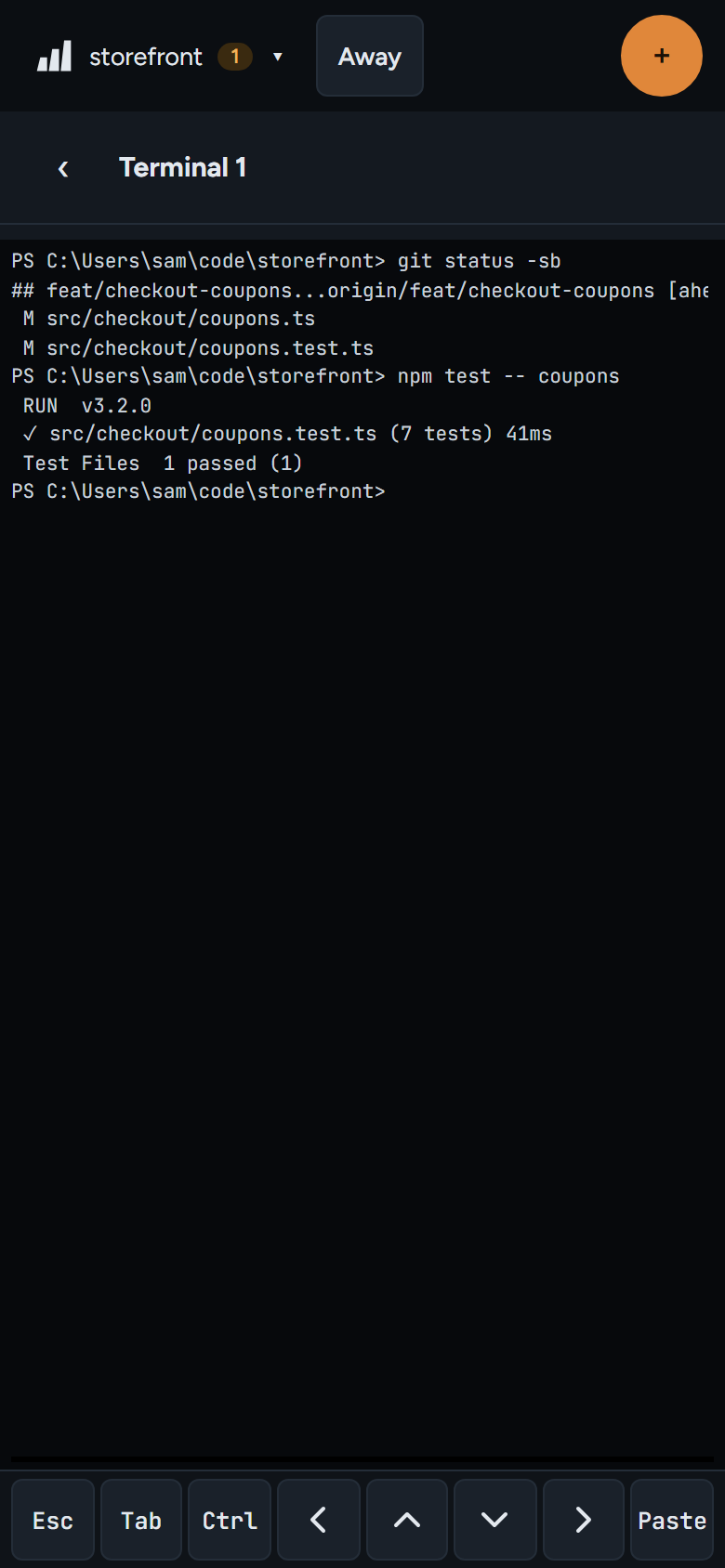
With phone access on, open More → Terminals. Tap a terminal to open it full screen; Back goes back to the list. A row of keys under the terminal adds Esc, Tab, Ctrl, the arrow keys and Paste. When you select text, Copy and Select all show above them.
Your PC and your phone show the same terminals. A command you start on one keeps running when you open it on the other.
Close a terminal
Press × on its row. If the shell is still running, ratchet asks first: Close Terminal 1? Anything running in it stops. Press Close.
Typing exit ends the shell too. The terminal then shows Terminal ended, its row says Ended, and × removes it without asking. If you leave it, an ended terminal goes away by itself 5 minutes after no screen is showing it.
Closing the terminal you started ratchet from doesn't stop ratchet or these terminals. Only ratchet stop or Stop ratchet in Settings does.