Claude Code Remote Control not working: fixes and other options
Remote Control lets you carry on a Claude Code session from your phone. When it won't start, drops when the PC sleeps, or a command does nothing from the phone, these are the causes Anthropic documents, and what else you can use.
On this page
What Claude Code gives you (as of 14 October 2026)Fixes and stepsWith ratchetRelated guidesWhat Claude Code gives you (as of 14 October 2026)
Remote Control connects claude.ai/code or the Claude app for iOS and Android to a Claude Code session running on your machine. The session stays on your computer, which makes outbound HTTPS requests only and opens no inbound port. claude remote-control starts a server mode that can hold several sessions, and --spawn worktree gives each new session its own git worktree. See also Claude Code on mobile.
Fixes and steps
From Anthropic's Remote Control docs, as of 14 October 2026:
- Not available for your account. Remote Control is on the Pro, Max, Team and Enterprise plans. API keys are not supported. On Team and Enterprise, an Owner has to turn it on. It also doesn't work when
ANTHROPIC_BASE_URLpoints at a gateway or proxy. - The session goes offline. The session runs on your computer, so the computer has to stay on and the
claudeprocess has to keep running. Closing the terminal takes the session offline. On Windows, set the PC not to sleep while it is plugged in (Settings → System → Power) for as long as you want to reach it. - Only one session shows. Outside server mode, each interactive
claudeprocess carries one remote session. Startclaude remote-controlfor several. - A command does nothing from the phone. Some commands are local-only, for example
/pluginand/resume, and Bypass permissions can't be chosen from the app. Run those in the terminal on the computer.
With ratchet
ratchet is another way to reach your Claude Code agents from a phone. It is a free dashboard that runs on your PC, on Windows 10, Windows 11 or macOS, and opens in your phone's browser. It doesn't replace Remote Control; it covers the cases above differently:
- ratchet has no account of its own and doesn't check which Claude plan you use: it starts the Claude Code you already have.
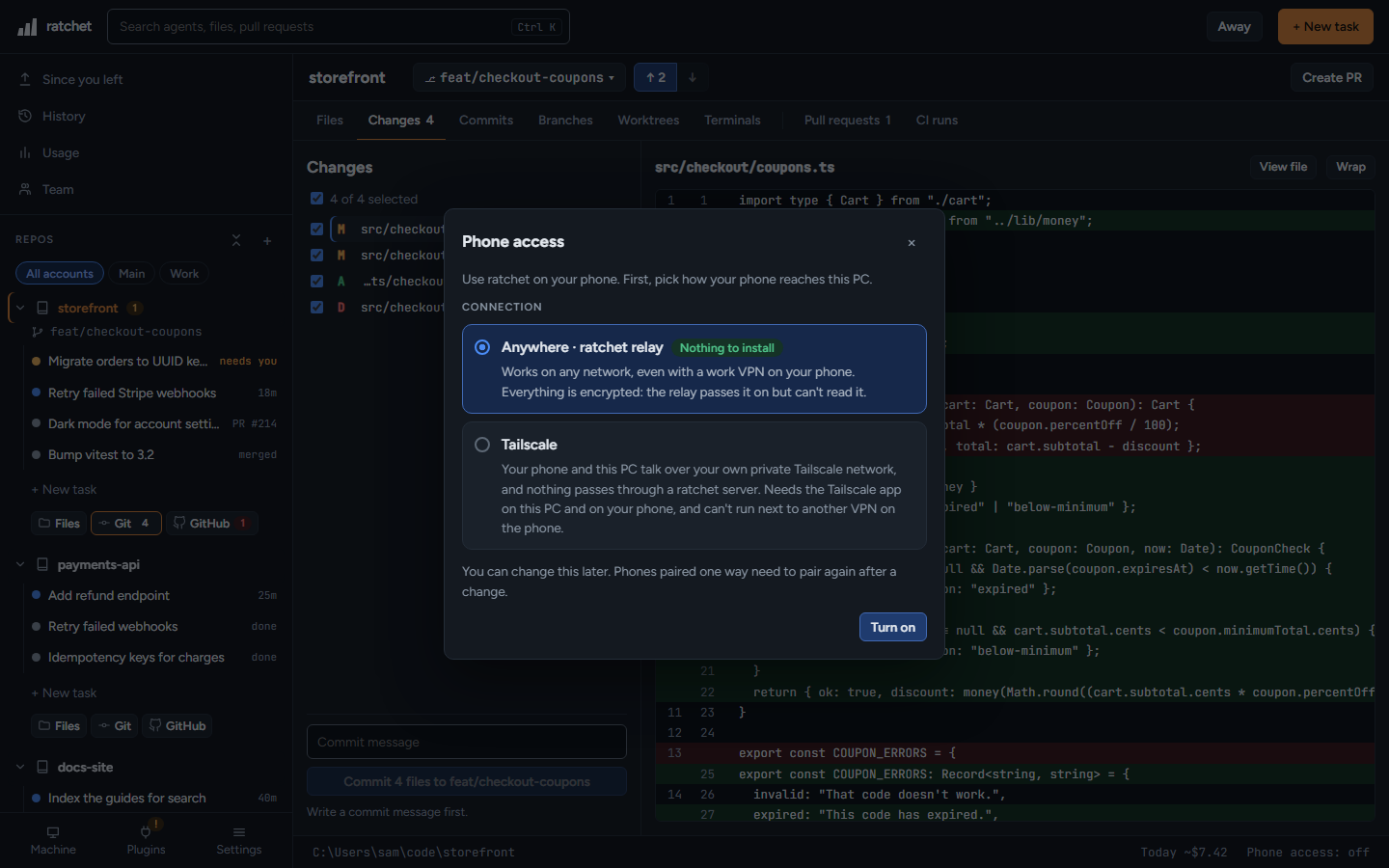
- Your phone connects through the end-to-end encrypted ratchet relay or through your own Tailscale. The PC makes one outgoing connection and opens no port.
- While phone access is on and agents are running, ratchet keeps the PC awake.
- One phone sees every agent in every repo you added, with its status.
npm install -g @ratchet-ai/ratchet ratchet
- In ratchet on the PC, open phone access and pick the ratchet relay or Tailscale. See Phone access.
- Scan the QR code with the phone, or type the eight-character code. See Set up phone access.
- Start agents with New task to answer them from the phone. Agents you started in a terminal show up too, but you answer those where they run.