Use Claude Code from your phone, on Windows too
Claude Code runs on your PC, and you want to check on it, answer a question or start a task from your phone. The three usual routes, what each one needs, and the Windows steps most phone guides skip.
On this page
What Claude Code gives you (as of 14 October 2026)Fixes and stepsWith ratchetRelated guidesWhat Claude Code gives you (as of 14 October 2026)
- Remote Control. Remote Control connects the Claude app for iOS and Android, or claude.ai/code, to a session running on your computer. It needs a claude.ai Pro, Max, Team or Enterprise login (API keys are not supported) and a running
claudeprocess; closing the terminal takes the session offline. - Sessions in the cloud. The mobile page also covers cloud sessions and the other ways Anthropic offers to work from a phone.
Fixes and steps
The Remote Control step follows Anthropic's Remote Control docs as of 14 October 2026; the SSH and dashboard steps are general.
- Remote Control. Sign in to the Claude app with the account Claude Code uses, start Remote Control from the session on the PC, and keep the PC awake. If it won't connect, see Remote Control not working.
- SSH from a phone terminal app. Many guides use SSH over Tailscale with tmux to keep the session alive. On Windows this is harder: the SSH server is an optional Windows feature you add first, and tmux doesn't run on Windows itself, only inside WSL.
- A browser dashboard on the PC. A dashboard that runs next to Claude Code and opens in the phone's browser needs no terminal app and no SSH. ratchet, below, is one.
With ratchet
ratchet is a free dashboard for Claude Code that runs on your PC, on Windows 10, Windows 11 or macOS. Your phone opens the same ratchet in its browser: every agent in every repo you added, each one full screen with its conversation, New task, and a plain terminal in the repo's folder.
npm install -g @ratchet-ai/ratchet ratchet
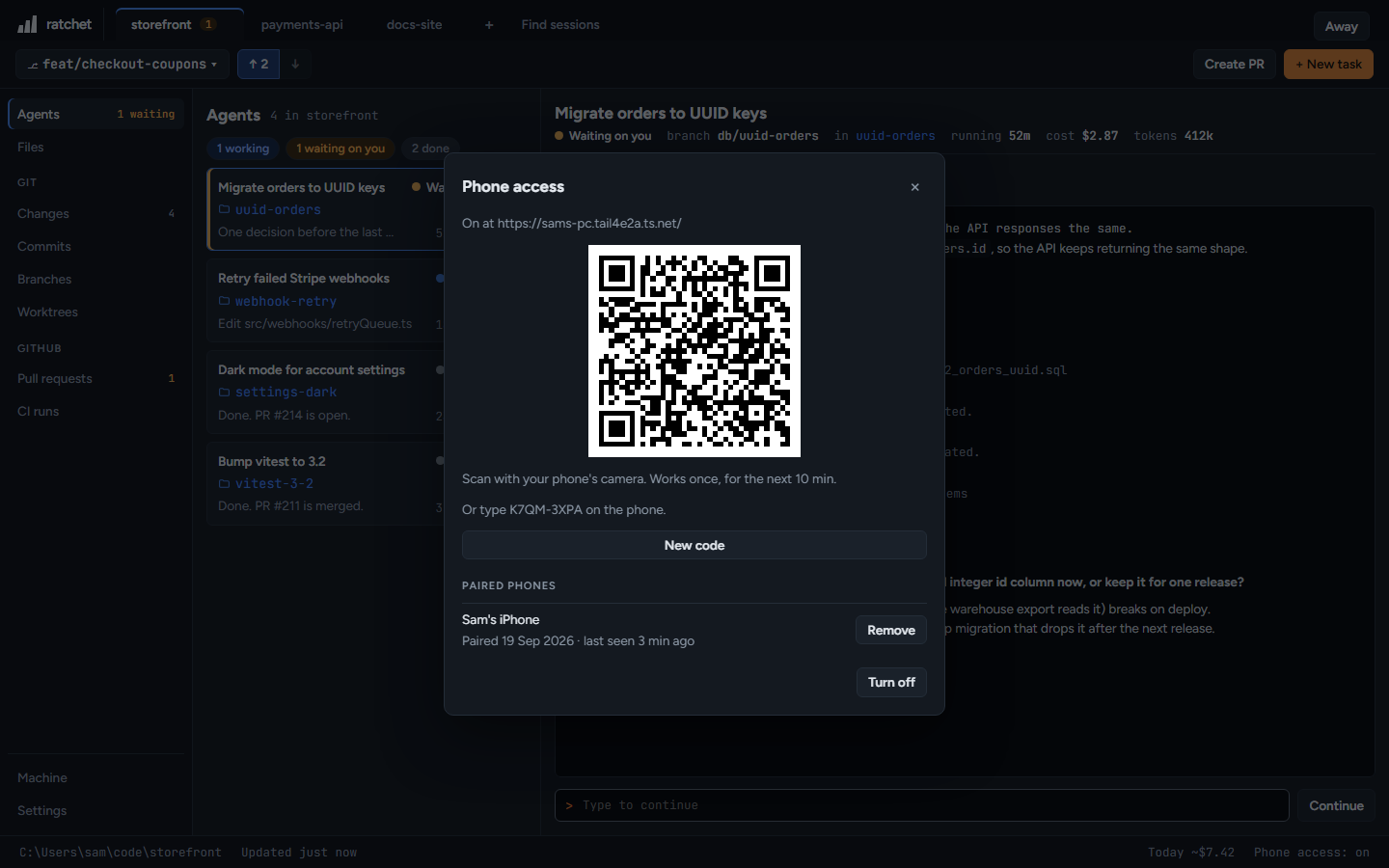
- In ratchet on the PC, turn on phone access. Pick the ratchet relay, which needs nothing installed, works on any network and is end-to-end encrypted, or your own Tailscale.
- Scan the QR code with the phone and add ratchet to the home screen. See Set up phone access.
- Start agents with New task, on the PC or the phone, and answer them from either. Agents you started in a terminal show up too, but you answer those where they run.
- Turn on alerts to get a push when an agent needs you.
ratchet has no account of its own and doesn't check which Claude plan you use: it starts the Claude Code you already have.